# Install Handled Locator on WordPress
Source: https://locator.handledlocal.com/docs/install-wordpress
Add the locator with WordPress's Custom HTML block, confirm the script survives saving and verify the public page.
## Before you install
Publish at least one visible location, review the locator design and connect the selected map provider. Copy the complete snippet from **Embed & Install**. It contains the account's real site ID.
You have two supported WordPress installation paths:
* Install the [official Handled Locator plugin](https://wordpress.org/plugins/handled-locator/) for a native block and shortcode.
* Use the hosted embed below in a Custom HTML block when you prefer not to install a plugin.
Shape of the embed:
```
```
## Add the plugin block or Custom HTML block
1. **Choose your installation path**: Install the plugin from WordPress.org and connect your Site ID in **Settings Handled Locator**, or open the page where the hosted embed should appear.
2. **Add the locator**: Insert the **Handled Locator** block, use the `[handled_locator]` shortcode, or choose **Custom HTML** from the Block Inserter for the hosted embed.
3. **Publish and verify**: If you used the hosted embed, paste the complete snippet without changing its Site ID. Update or publish the page, then run **Check installation** in Handled.
WordPress documents the current block controls in its [Custom HTML reference](https://wordpress.org/documentation/article/custom-html/).
## Publish and verify
Open the public page in a new browser tab. Return to **Embed & Install** in Handled and run **Check installation** against that exact URL.
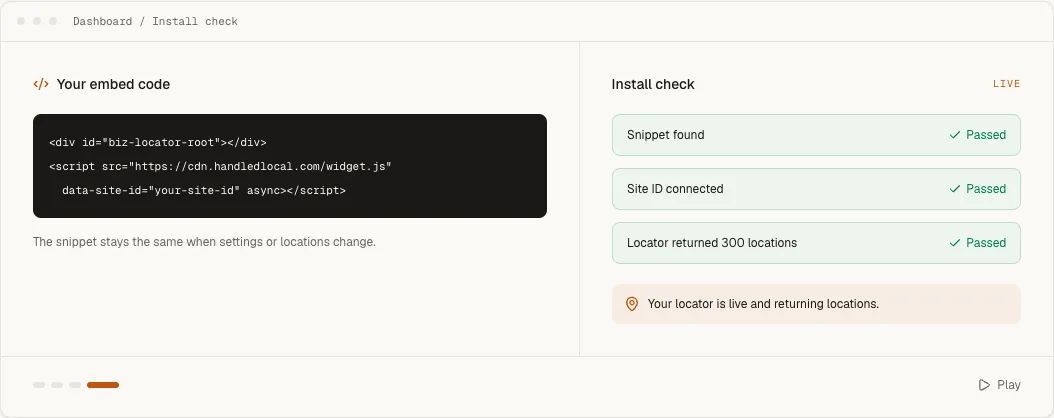
Verification checks the published page, its site ID and the locations returned to visitors.
## If WordPress removes the script
Inspect the Custom HTML block after saving. If the `