Store search
Turn a place into the nearest useful result.
Visitors can search by town, postcode or location name, use their current position, narrow the distance and open directions. You control which fields match and what happens before or after a search returns nothing.
7-day trial · No card required · Every working self-serve feature included
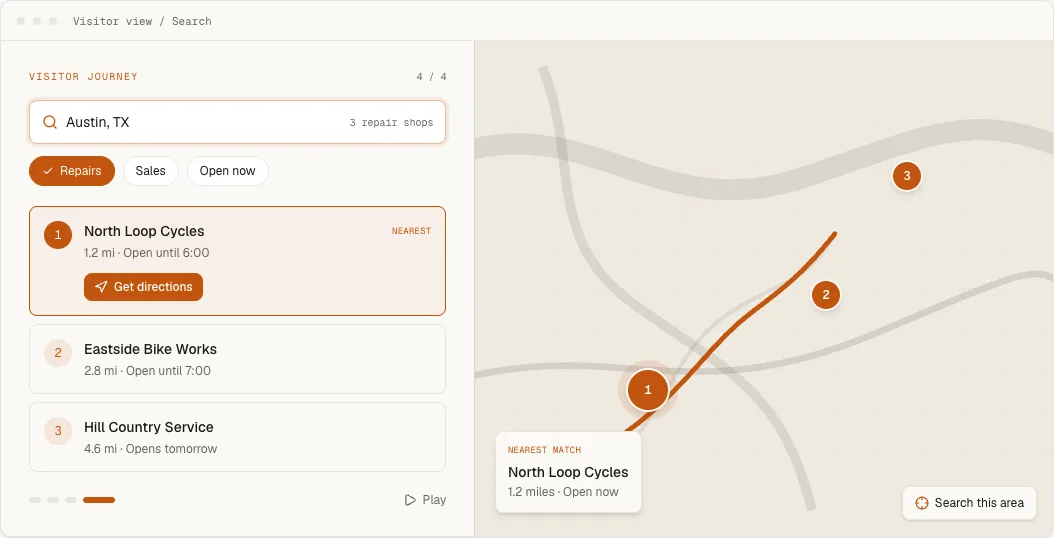
What this changes for the visitor and the team.
- 01
Match the way visitors actually search.
Choose text filtering, place-and-radius search or a combination, then decide whether names, addresses and categories participate.
- 02
Make distance understandable.
Results reorder around a searched place or current position, with miles or kilometres and a radius selector when the visitor needs one.
- 03
Give every search a useful next action.
Show contact details, website links, custom actions and directions in Google Maps or Apple Maps rather than ending at a pin.
How it works
What the visitor sees and what you control.
Two search modes for two different jobs
Filter by text searches the locations already loaded in the widget and updates immediately. It suits a compact network where visitors know a branch, neighbourhood or service name, and you choose whether it matches the address only or the name, description and custom fields as well. Search near a place turns a town, postcode or address into coordinates and sorts every location by distance, which suits regional and national networks. Text filtering creates no point to measure from, so radius and distance need the near-a-place mode.
Suggestions, countries, units and radius
Address autocomplete can suggest full addresses or only cities and regions, restricted to the countries you list with ISO codes such as US, CA, or left open worldwide. Distances show in miles, kilometres or whichever the visitor's region expects, with smart rounding, whole numbers or one decimal. The radius selector appears once a search has a point, with a default you choose and an Any distance option for networks spread far apart, and markers outside the radius can be hidden so the map and the list show the same set.
Current location, only when asked
The Use my location action can show as icon and text, icon only or not at all, and it turns icon-only by itself in a narrow mobile locator so the search field stays usable. The browser permission prompt appears only after the visitor presses it, unless you switch on automatic visitor location as the locator loads. The coordinates stay in the browser and are not written to location or analytics records. If permission is denied or the lookup times out, a message beside the search box asks for a town or postcode instead.
What the visitor sees after searching
The list reorders nearest-first and a search marker can show the point being measured from. After a search you can leave everything unselected, highlight the first result, open its details or open its map popup. The optional nearest-location summary places the closest match above the list with its distance, address, open status, phone and directions. Directions open in Google Maps, Apple Maps or whichever suits the visitor's device, and an optional print view covers anyone who still wants paper.
Before the first search, and when nothing matches
The locator can open on every location, approximately near the visitor, on a place you choose, or empty until someone searches; Hide locator body withholds the map and results until then. When nothing matches, show an empty state whose expand-search button widens the radius straight to the first preset that returns something, or to any distance, or show every location with a note. Online-only locations keep their own tab whatever the search found. URL state makes a filtered view bookmarkable, and Map move updates re-sorts the list as visitors pan.
Workflow
From configuration to a checked public result.
- 1
Choose the search mode and the fields that should respond to a typed query.
- 2
Set radius, units, geolocation and no-result behavior for the regions you serve.
- 3
Test a known place, a partial name and a place outside the network before publishing.
Included capability
- Town, postcode, address, location-name and category matching
- Optional browser geolocation and distance sorting
- Configurable radius in miles or kilometres
- Address suggestions restricted to countries you serve
- Open-now filtering from each location's hours and timezone
- Shareable search state and privacy-safe browser events
The boundary
Current-location search depends on the visitor granting browser permission. Place suggestions and geocoding depend on the connected map provider; Handled never promises that an ambiguous address will resolve without review.
Continue with the task documentation.
Configure visitor search
Choose search mode, radius and empty-state behavior.
Open guideCreate categories and filters
Add product, service and store-type choices.
Open guideWidget events
Connect privacy-safe search and action events to site behavior.
Open guideLink to a pre-filled search
Open the locator on a place, query, tag or radius from any link.
Open guideBefore you choose
Questions buyers ask about this feature.
- Can visitors search by postcode?
- Yes. Place search supports towns, postcodes and addresses, while text filtering can also match location names and categories.
- Can the locator use a visitor's current location?
- Yes, when the visitor grants browser location permission. You can request it automatically or leave it behind a visitor action.
- What happens when there are no nearby locations?
- You can show an empty state with an expand-search button, or show every location with a note. Online-only locations stay available in their own tab either way, because a place search does not narrow them.
- Can a search box elsewhere on my site feed the locator?
- Yes. On the same page, the widget's JavaScript API can pass the visitor's text to searchNear. On a different page, a plain form can send visitors to the locator with loc_near, loc_q, loc_tags or loc_radius in the URL.
- Does changing search settings need new embed code?
- No. Search mode, radius, units, autocomplete and empty states are dashboard settings, and the live locator picks up a saved change without touching the snippet.
Try the feature against your own location list.
Start with representative data, test the real visitor journey and keep the locator only if it handles the job your website needs.