Choose a search mode
Open Configure → Search and choose the decision the visitor is making.
- Filter by text searches the location data already loaded in the widget. It suits a compact network where visitors know a branch, neighborhood, service or product name.
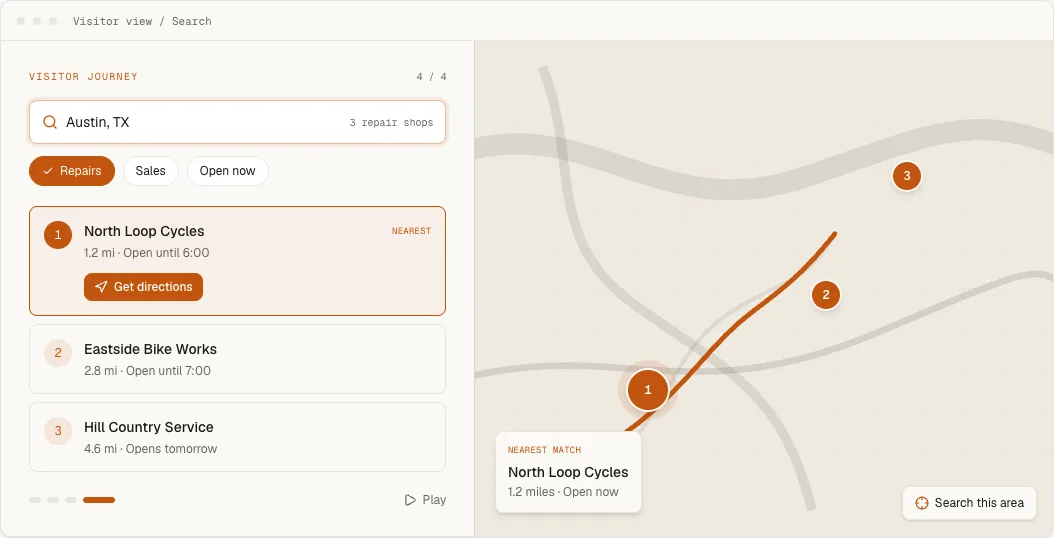
- Search near a place turns a town, postcode or address into coordinates, then sorts locations by distance. It suits regional and national networks.
Place the search field in the top toolbar, directly above the results, or hide it when the surrounding page provides the entry point. The optional magnifying-glass icon keeps a narrow search field recognizable after its placeholder begins to clip. Filters have their own placement control, so search can sit above the map while filters stay beside the result list.
Text filtering
Choose whether text searches only the address or also the location name, description and custom fields. The broader option is useful when visitors type a service name. Address-only behavior is easier to predict when every result represents the same kind of store.
Text filtering is local and immediate. It does not create a geographic point, so radius controls and visitor distance need the near-a-place mode instead.
Place and radius
Enable address autocomplete when visitors benefit from place suggestions. Restrict Address countries with ISO codes such as US, CA when the business operates in a known region; leaving it blank allows worldwide matches.
The radius filter appears only after search has created a point to measure from. Choose a default radius that reflects how far customers realistically travel. Any distance avoids an artificial cutoff when branches are spread far apart.
To make the closest option easier to act on, enable Search & location → Nearest-location summary. After a successful place or visitor-location search, Handled shows the closest matching location above the results with its distance, address, open status and configured phone and directions actions. The summary stays hidden before a search, after a plain text filter, and when the locator falls back to showing all locations after no matches. Change its heading under Language.
Let visitors use their location
Search near a place includes a configurable Use my location action. Choose Icon and text, Icon only or Hidden under Search & location → Use my location. The labelled action automatically becomes icon-only in narrow mobile locators so the manual search field remains usable. Change its wording under Language, and use the shared brand controls for colors, corners, borders and typography. Scoped custom CSS can target .biz-locator-locate for a final brand-specific adjustment.
The action asks for browser permission only after the visitor presses it. When permission is granted, the locator uses the coordinates as the search point, sorts results by distance and can show the search-origin marker on the map. The coordinates stay in the browser and are not written to location or analytics records.
Manual place search remains available when the browser does not support location, permission is denied or the lookup times out. The error message appears beside the search controls and tells the visitor to enter a town or postcode instead.
Enable Visitor location only when you also want the browser permission prompt to appear automatically as the locator loads. A place carried in the URL or already typed by the visitor takes priority, and the automatic prompt does not run inside the dashboard preview. Location errors controls whether a failed automatic request is explained; a failed visitor-initiated request is always explained because the visitor is waiting for its result.
Empty and no-result states
Use Empty initial state when showing every location before a search would overwhelm the page. Hide locator body goes further by withholding the map and results until the visitor expresses intent.
For no results, choose between an honest empty state and showing all locations with a note. Showing everything prevents a dead end; remaining empty is clearer when the nearest location could be hundreds of miles away.
Enable URL state when a filtered view should be bookmarkable or shareable. Enable Map move updates when panning the map should reorder the list around the new center.
See the complete store search capability for the visitor outcomes, setup workflow and practical boundaries behind these controls.