Prepare the file
Save the spreadsheet as UTF-8 CSV with one location per row. Include a name plus either a complete address or coordinates. Headers can use familiar names; the importer proposes likely matches and lets you correct them before anything is written.
Before opening the dashboard, you can run the file through the free CSV location validator. It checks the structure in your browser and does not upload the file.
name,address,phone,website,categories
North Loop,120 N 1st St Minneapolis MN 55401,612-555-0142,https://example.com/north,Pickup
Lakeside,450 Lake Ave Duluth MN 55802,218-555-0188,https://example.com/lakeside,Service
The importer reads name, address, latitude, longitude, phone, email, website, description, city, state, postcode, country, categories and location type, plus territory postcodes for dealer territories. Opening hours, timezones and custom fields are not import columns: set them per location in the dashboard, through the Location API, or from Claude or ChatGPT.
Map columns
- 1
Upload the CSV
Open Locations, choose Import CSV and select the exported file. - 2
Confirm the headers
Check every proposed field mapping. Leave columns unmapped when they should not enter Handled. A file with the same headers as one you imported before maps itself the way you mapped it last time, so a distributor's monthly report is a drag-and-drop the second month. - 3
Confirm categories
Existing categories match by name. Unknown values are shown for review rather than creating an uncontrolled category list.
Review problems
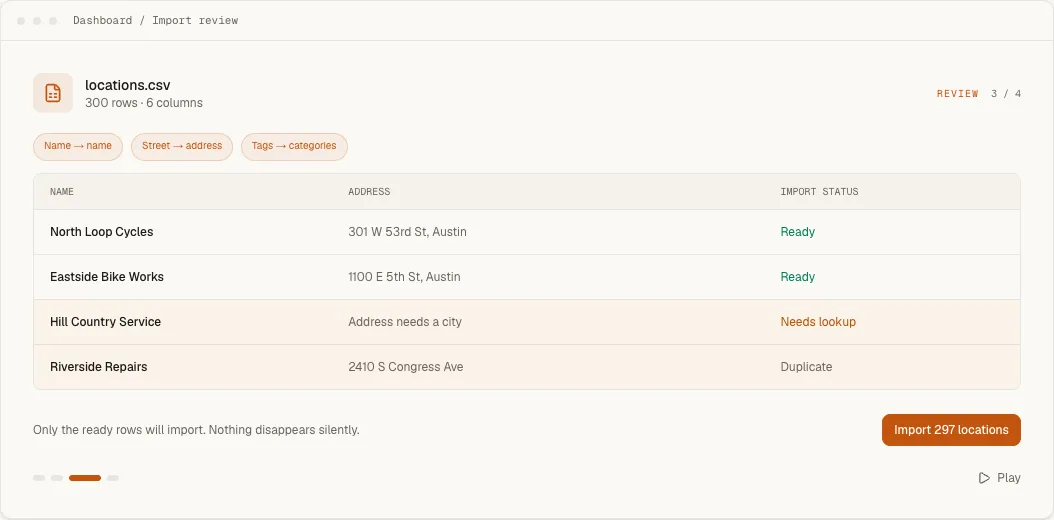
The review separates ready rows from blank required fields, duplicates and addresses that could not be geocoded. A problem in one row does not require throwing away the rest of the file.
Rows that repeat the same store, one line per product as a distributor report lists them, are folded into one location first, with every product from the repeated lines merged into its categories. The review says how many lines were folded. The distributor reports guide walks through such a file.
Import and check
Import the ready rows, then spot-check several locations in the preview, including at least one with categories. Exporting later produces a round-trip CSV whose columns can be imported again without remapping.
See the complete CSV import capability for the full workflow, evidence and differences from an ongoing Google Sheets connection.