A dealer locator that honours the agreement
A distance-sorted map is wrong for a dealer network when a dealer's territory is written in postcodes. The nearest showroom on the map may not be the one entitled to the sale, and the enquiry from a visitor in that postcode has to reach the right dealer. This guide sets that up: each dealer gets the postcodes from its agreement, the map pins the owning dealer first or shows only them, and enquiries route to the owner.
The reference for every rule and mode is the territories page; this is the order to do it in.
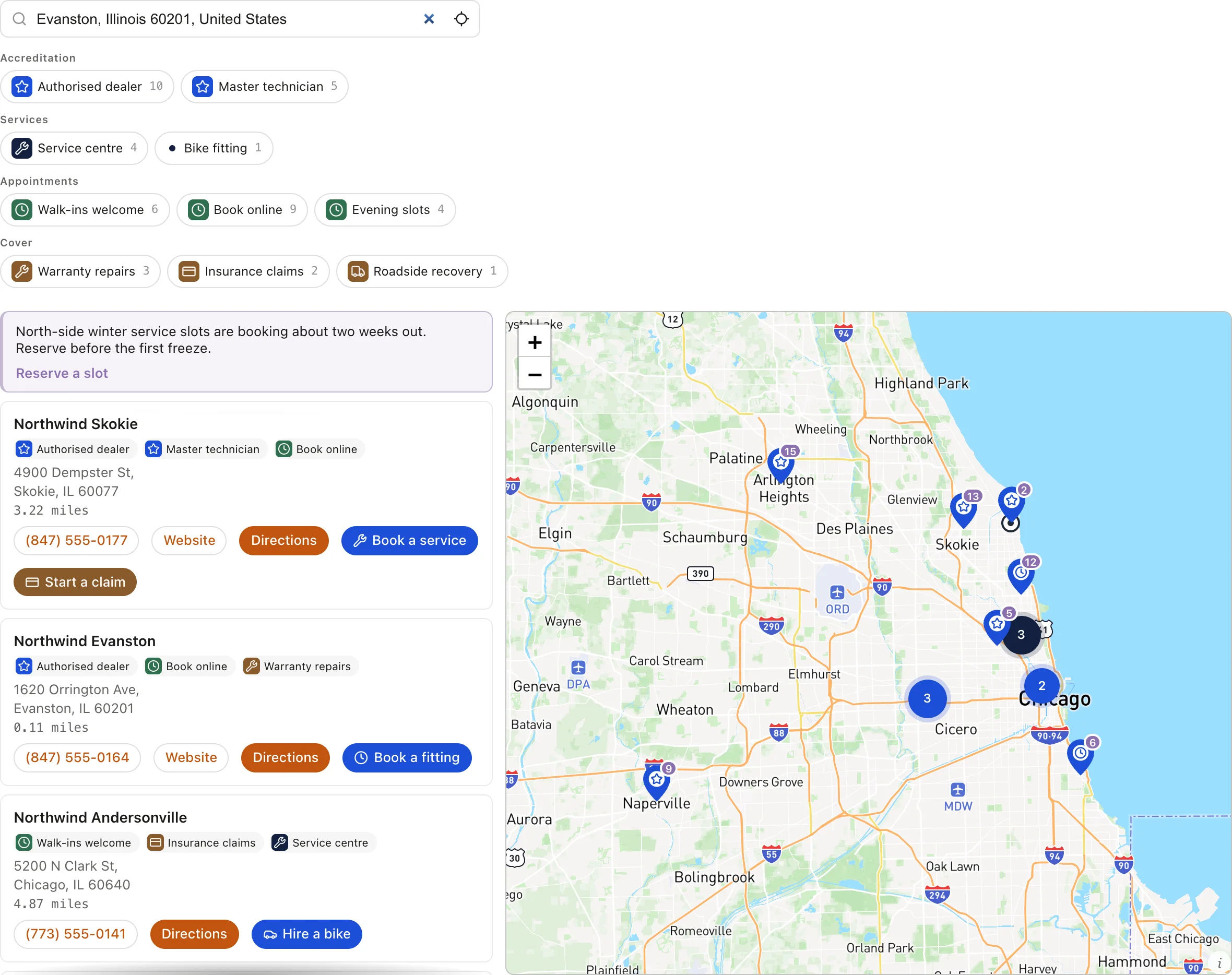
This is the finished result. Northwind Cycles is an example dealer network with two postcode territories published and two drawn Spotlight areas, which is the combination most agreements end up needing.
1. Add the dealers
Each dealer is a location with its name, address and public contact details. Add them by hand, by CSV import, from HubSpot if the network lives in your CRM, or by asking the connector. Tag them by tier (Platinum, Certified, Authorized) so the tier can drive the marker colour and a filter.
2. Assign territories
- 1
Open Territories
Under Locations → Territories, choose a dealer and press Add territory. - 2
Paste the postcodes
Paste the list from the agreement. A comma list, a column or a paragraph all work.750*covers every postcode starting 750;M5V*a Canadian forward sortation area;SW1A*a British outward code. - 3
Carve out exceptions
An Except rule removes postcodes from a territory, which is how "the whole district minus the city centre" is written. - 4
Rank overlaps
Where two dealers legitimately cover the same postcode, a national account over regional dealers say, set a rank. Lower wins. Details under overlaps and rank.
A CSV import can carry territories too: columns for territory postcodes, exceptions and rank are in the column list.
3. Choose how hard it lands
Publishing and choosing a mode are one action on the Publish card:
- Preferred pins the owning dealer first and still lists the rest. The gentle default for most networks.
- Exclusive shows only the owning dealer for a covered postcode. For networks where the agreement forbids showing a competitor.
- Fallback adds the owner only when the ordinary search finds nothing. Safe while coverage is being built.
Name a fallback location, head office usually, for postcodes nobody covers. Publish, then search a postcode from each dealer's list on the live locator to confirm.
4. Route enquiries to the owner
Turn on the Enquiry form under search settings. After a search, the visitor can send a message; it is routed to the dealer whose territory covers the searched address, emailed to them with the reason it was routed there, and listed under Leads. The dealer marks it handled from a link in the email; no login needed.
To put the lead somewhere else as well, a CRM, a shared inbox, a spreadsheet, subscribe a webhook to lead.created or use the Zapier recipe. The payload carries the visitor's details, the searched postcode and the dealer it went to.
Areas that are shapes, not postcodes
Where an agreement is a line on a map rather than a postcode list, draw it as a Spotlight rule and show only that dealer inside it. Spotlight applies after territories and does not route enquiries; keep the postcode territory for the enquiry side when you have one.
Keeping it right
- A dealer leaving the network: pause its territory with the eye icon, which keeps the rules and stops it being a candidate. Delete only when the agreement is truly gone.
- A handover: give the incoming dealer the same postcodes at a better rank, then remove the outgoing dealer's territory once the date passes.
- Check Leads monthly for enquiries routed by distance or to the fallback; each one is a postcode nobody covers.