What Spotlight does
By default the locator ranks by distance and says the same thing to everyone. Spotlight adds rules on top: a banner for one region during a sale, a featured dealer inside an area you draw, an exclusive set of locations for a patch, a message where nothing is nearby. Each rule is one trigger (where or when a visitor searches) and one action (what changes), with an optional date window.
Rules live under Locations → Spotlight. They apply the moment they are saved and enabled, and in the order they are listed.
See it working
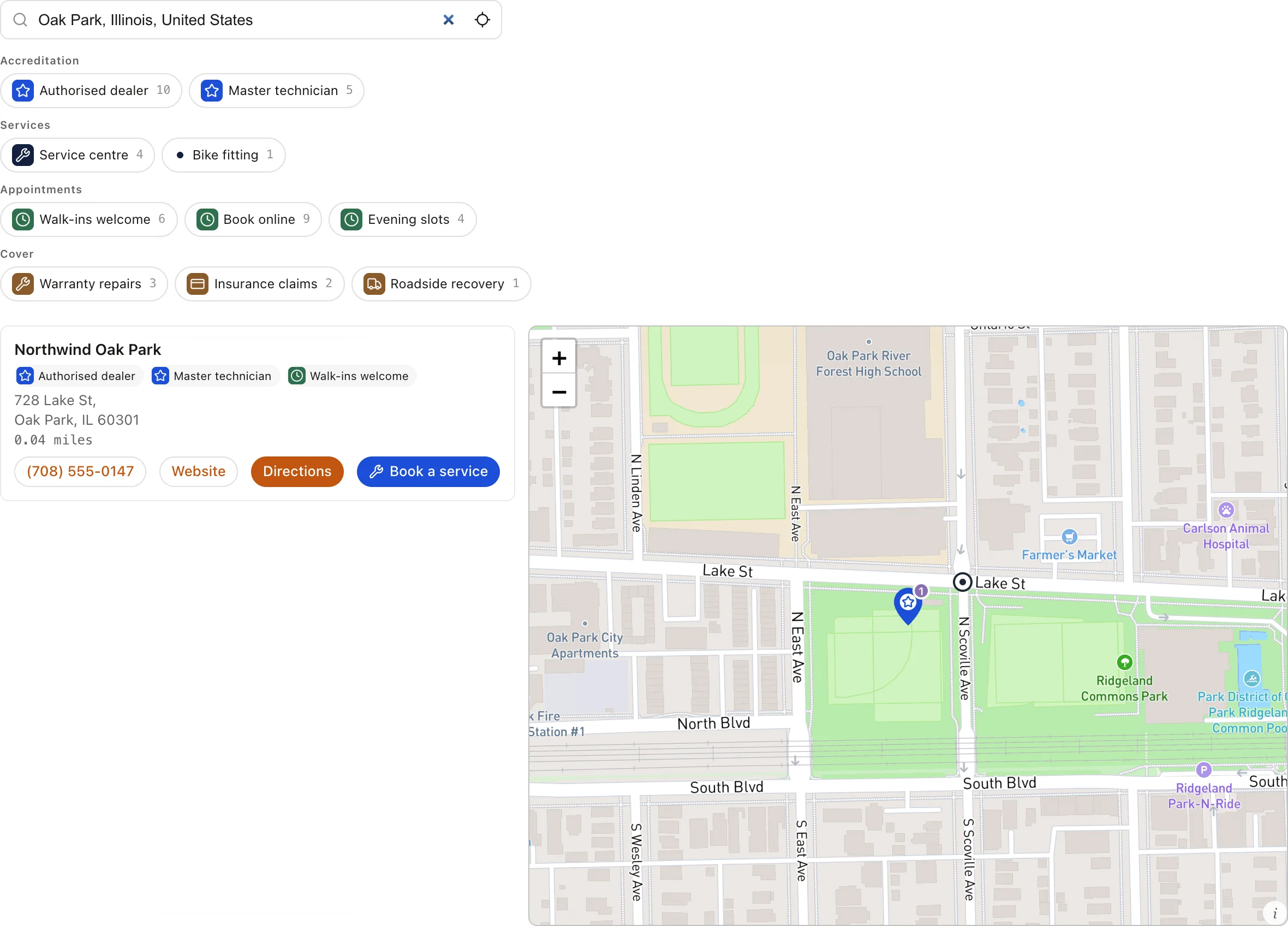
Northwind Cycles is one of the example locators, and it has three Spotlight rules switched on. Both pictures below are the real widget with a real search typed into it, not a mock-up.
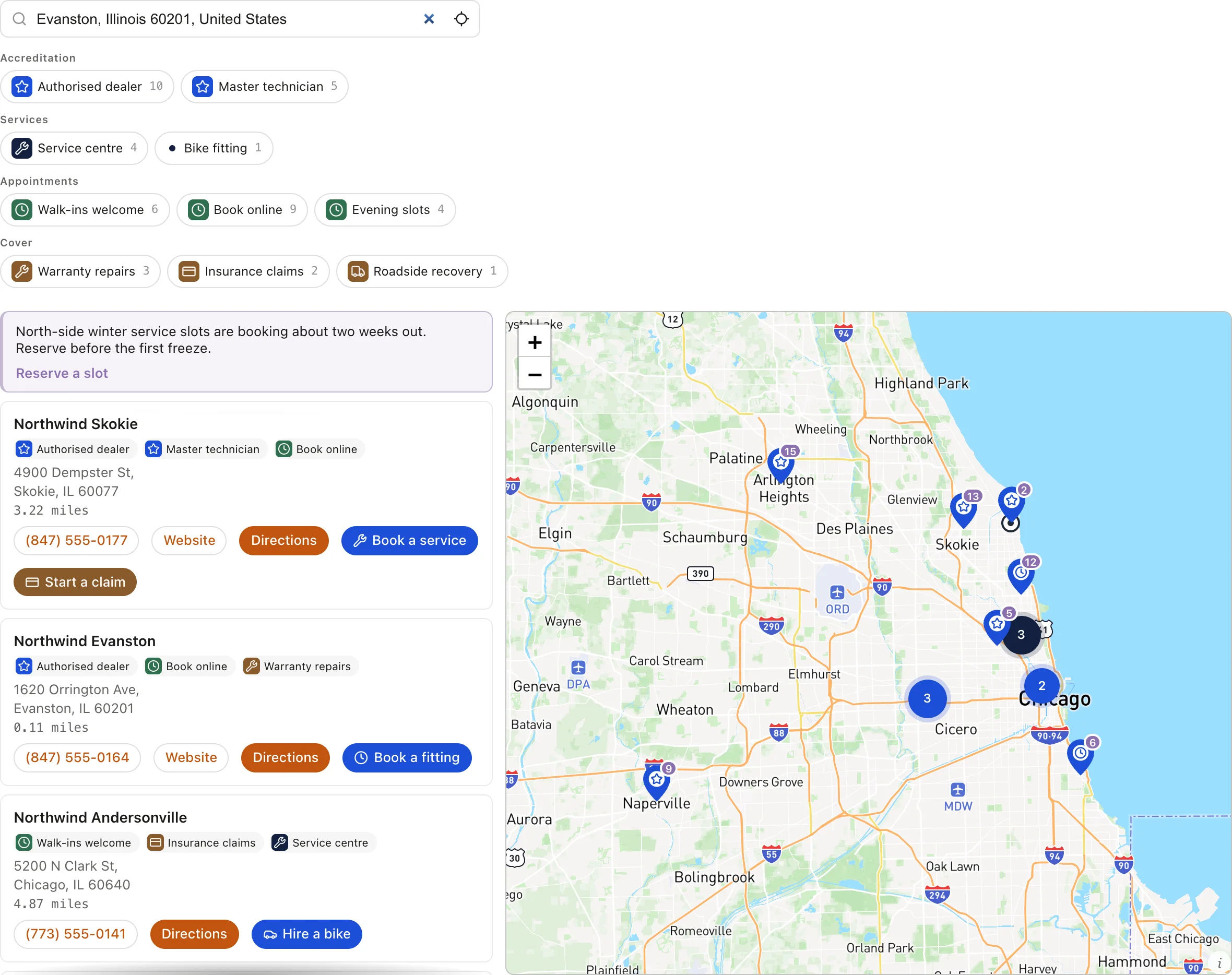
The second rule is the one that changes the list rather than adding to it. Oak Park sits inside a different drawn area that one dealer holds outright, so a search there returns that dealer and nobody else.
A third rule fires when a search finds nothing at all, offering a mail-order build instead of an empty list. All three are written the way this page describes them: two polygon triggers and one no-results trigger, with a banner, a show-only and a banner action. Nothing about the example is special-cased.
Triggers
- Every search. Applies whenever the locator is shown. With a date window, this is a campaign banner.
- When a search finds nothing. The message for ground you do not cover: a delivery option, a contact form, a promise of when you will.
- Within a distance of a point. A circle: a centre and a radius in kilometres.
- Inside an area you draw. Click corners on the map to draw any shape; drag a corner to move it, click one to remove it. Fires when the visitor's searched place is inside.
- In these postcodes. Exact postcodes or prefixes such as
750*, the same shape territories use. Only a typed search carries a postcode; "use my location" arrives as coordinates and does not fire this trigger. - When a tag filter is on. Fires when a visitor has that tag active, for a message about one product or service.
Actions
- Show a banner. A message above the results, with an optional link and link text. Styled in your accent colour; the wording is yours.
- Feature locations. Move the chosen locations to the top or bottom of the list, keeping everyone else.
- Show only these locations. Restrict the list to the chosen locations, taken from your whole network even if they are outside the visitor's radius. The Spotlight version of an exclusive territory, for areas drawn rather than written as postcodes.
- Hide these locations. Remove the chosen locations from the list for searches the trigger matches.
Date windows
Any rule can carry a start, an end, or both. Outside the window the rule is dormant and needs no switching off; a holiday-hours banner set for 20 December to 2 January takes care of itself every year you leave it in place.
Recipes
- 1
A regional promotion
Trigger: inside an area you draw around the region. Action: a banner with the offer and a link. Add the dates. - 2
A dealer that owns a patch
Trigger: inside an area you draw. Action: show only that dealer. Visitors searching there see the dealer whose agreement covers them, wherever their office is. - 3
Uncovered ground
Trigger: when a search finds nothing. Action: a banner saying you ship nationwide, or when the area opens, with a link to order online. - 4
A flagship near its city
Trigger: within 40 km of the flagship. Action: feature it at the top. Elsewhere it ranks like any other.
Order and overlaps
Rules apply top to bottom, so where two match the same search the later one has the last word: a "show only" after a "feature" wins, a "hide" after a "show only" removes from that set. Use the arrows on a rule to change the order. Spotlight runs after territories, so a drawn exclusive area can narrow what a territory produced.
Testing a rule
Under Locations → Spotlight, below the rule list, type a place into Check a rule before a visitor does. It geocodes the place the way a visitor's search is geocoded, then runs every rule against it using the same code the locator runs. For each rule it says whether it fires and, when it does not, why: outside the circle, outside the drawn area, the postcode is not in the list, the date window has not opened. It then reports how many locations a visitor would be left with and which banners they would see.
Two things it deliberately does not model. Search distance is yours to set, so the check starts from your whole list and reports only what the rules did to it. And a typed place always counts as a search that found something, so a no-results rule never fires in the check; test that one by searching somewhere you genuinely do not cover.
A rule that fires in the check and not on your site is nearly always a postcode trigger meeting a search that carried no postcode. Only a typed search carries one; "use my location" arrives as coordinates.