CSV import
Move the spreadsheet in without losing the problem rows.
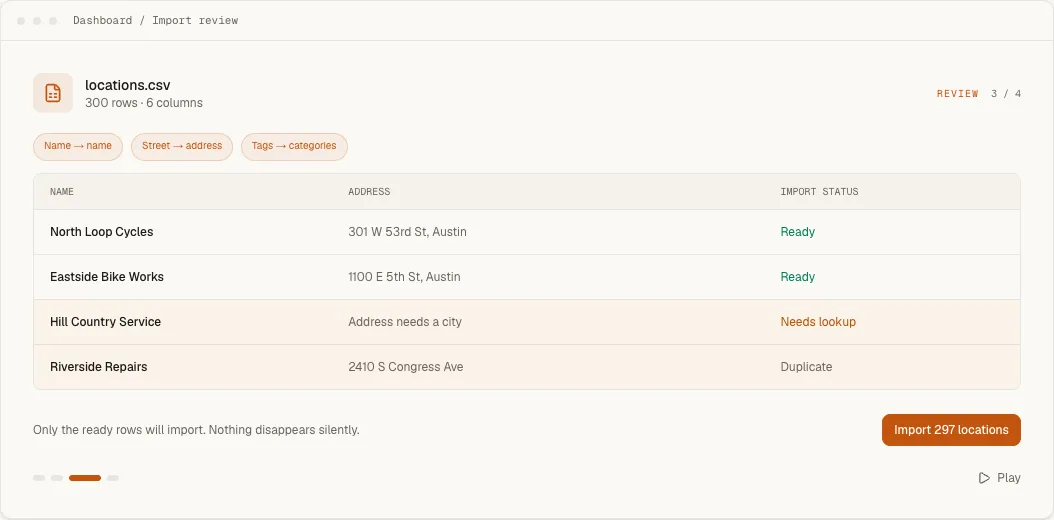
Upload the location file you already maintain, map its columns and review the rows that need attention before applying anything. Addresses are geocoded and failures return with a reason instead of disappearing.
7-day trial · No card required · Every working self-serve feature included
What this changes for the visitor and the team.
- 01
Keep the spreadsheet shape you already use.
Map your headings to Handled fields instead of renaming every source column before the first upload.
- 02
See what will not import and why.
Review missing address information, coordinate problems and duplicate candidates before the ready rows are applied.
- 03
Check the public result after the data operation.
Verify a representative location, category, location type and map pin in the real widget rather than treating a successful upload as the finish line.
How it works
What the visitor sees and what you control.
Prepare the file
Save the spreadsheet as UTF-8 CSV with one location per row, and give each row a name plus either a complete address or coordinates. The importer understands name, a single address or split street, city, region, postcode and country columns, latitude, longitude, phone, email, website, description, categories, location type and territory postcodes. Opening hours, timezones and custom fields are not import columns; set them per location afterwards in the dashboard, the Location API or the MCP connector. The free CSV location validator checks the file's structure in your browser before you start, and does not upload it anywhere.
Map columns once
The importer proposes a Handled field for each heading and lets you correct it before anything is written. Leave a column unmapped when it should stay out of Handled. A file with the same headings as one you imported before maps itself the way you mapped it last time, so a distributor's monthly report is a drag-and-drop the second month. Category values match existing categories by name, and unknown values are shown for review rather than quietly creating an uncontrolled list.
Review the problem rows
The review separates ready rows from rows with blank required fields, addresses that could not be geocoded and duplicates. A row is flagged as a duplicate when a location with the same name and address already exists; it is left unticked so it is not imported twice, and you can tick it back on. Rows that repeat one store, as a distributor report does with one line per product, are folded into a single location with every product merged into its categories, and the review says how many lines were folded.
Plan capacity and what happens after
An import that would take the account past its plan's location capacity is refused before anything is written, with the numbers, rather than half-applied. The self-serve plans hold 200 on Starter, 2,000 on Pro, 10,000 on Business locations. Imported locations behave like any other: they can be edited one at a time, and each one fires a location.created webhook where webhooks are set up. Export produces a round-trip CSV whose columns import again without remapping, written so Excel opens it cleanly.
When to switch to a connected sheet
A CSV import is a one-time reviewed batch. When one spreadsheet should stay the source, add a permanent location_id column and connect it through Google Sheets sync instead; names, addresses and row numbers all change, and a stable ID is what keeps each update attached to the right location. The same sync engine reads Airtable, Webflow CMS and HubSpot.
Workflow
From configuration to a checked public result.
- 1
Export a UTF-8 CSV with one location per row and stable, consistently named columns.
- 2
Map the columns and review every warning, duplicate and address that could not be geocoded.
- 3
Import the ready rows, then spot-check location details, categories and coordinates in the widget.
Included capability
- Column mapping for existing spreadsheet headings
- Address geocoding during import
- Duplicate detection before apply
- Per-row status and failure reasons
- Category, location-type and territory-postcode columns
- CSV export for corrections and portability
The boundary
A CSV import is a reviewed batch operation, not a live connection to the source file. Use Google Sheets synchronization when one spreadsheet should remain connected, and correct ambiguous addresses before relying on their coordinates.
Continue with the task documentation.
Before you choose
Questions buyers ask about this feature.
- Does Handled silently skip rows it cannot import?
- No. Problem rows remain visible with their status or reason so they can be corrected rather than disappearing from the batch.
- Can CSV import create map coordinates from addresses?
- Yes. Addresses can be geocoded during import, but ambiguous or incomplete addresses should be reviewed before publishing.
- When should I use Google Sheets instead?
- Use Google Sheets synchronization when the spreadsheet should remain the maintained source after the first import and changes need a reviewed hourly, daily or manual sync.
- Can I check my file before importing it?
- Yes. The free CSV location validator checks the structure in your browser without uploading the file, so problems can be fixed before the dashboard review.
- My distributor report lists one row per product. Will that create duplicates?
- No. Rows that repeat the same store are folded into one location, with every product from the repeated lines merged into its categories, and the review says how many lines were folded.
Try the feature against your own location list.
Start with representative data, test the real visitor journey and keep the locator only if it handles the job your website needs.